If you recorded in front of a green screen, you can replace the green with any image or video from your Library. You can also apply the same background to several videos at once.
Replace the background of a video
- Go to your Library.
- Hover over the video and select the checkbox on its card.
- Click Edit in the actions above your content.
- Open Background Replacement.
- Make sure Green Screen Replacement is selected.
- Click Add image or video.
- Choose the image or video you want to use as the background.

The background must already be in your Library. To use a new file, upload it first (see How to Upload Videos & Files), then start the edit again. To pick a different background, remove the selected one and click Add image or video again.
No green screen?
Choose AI-Powered Replacement instead. It replaces your background without a green screen. It is part of OneMob's AI tools, so if your plan does not include them, OneMob shows an upgrade prompt.
Apply the same background to several videos
- In your Library, select the checkbox on each video you want to change, up to 10 at a time.
- Click Edit.
- Open Background Replacement and choose the background as described above.
- Save your changes as described below.
The background is applied to every selected video.
Save your changes
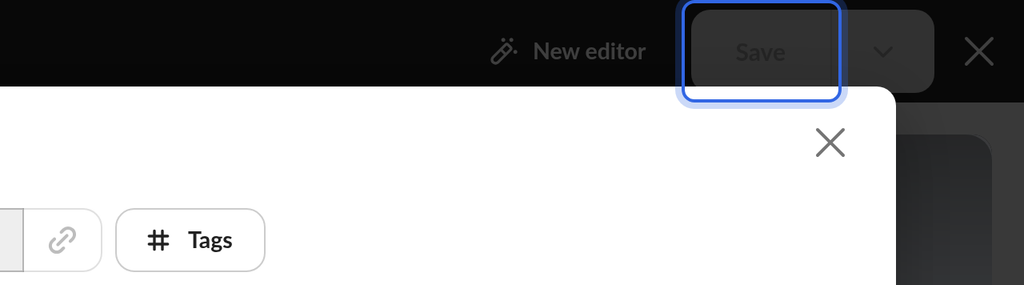
- Click Save.
Saving applies your edit to the video. Keep original in the Library is on by default, so OneMob first saves a copy of your original green screen recording to your Library, and you can give it a different background later. To replace the original without keeping a copy, click the arrow next to Save and turn off Keep original in the Library before you save.
If something does not work
- Save stays unavailable until you choose a background or make another change.
- If the green is not fully replaced, check that the green screen is evenly lit and fills the area behind you, or try AI-Powered Replacement.
Was this helpful?