The OneMob Account Settings is where you can update your User-Profile, Setup Microsite Preferences, and Integrate OneMob with your Email and CRM Tools.
If you are just getting logged into OneMob for the first time, click here for how to get started.
New accounts are guided through a Finish Setup wizard that walks you through five steps to configure your organization's defaults before you start creating microsites:
- Branding — Import your logo, favicon, and brand colors automatically by entering your company website URL, or upload a logo and favicon manually.
- Connections — Connect your CRM (Salesforce, HubSpot, or Dynamics) and email provider.
- Profile — Set up your personal and company details, default job titles, and contact links.
- AI Avatar — Configure a personalized AI video avatar for automated outreach.
- Summary — Review all configured settings before finishing setup.
To make Account changes:
1. Click on your profile icon or picture in the top right corner of your dashboard.
2. Click on Account Settings.
3. Fill in your Personal Data.
- Update your profile picture by clicking on the gray button on the left hand side. (Quick Tip: Use your LinkedIn Picture)
4. Click on Save.
5. Click on the Links tab.
6. Fill in your social media links that you would like to share on your OneMob microsites.
- If you use a calendar link (ie. Calendly, Bookings, etc.) copy and paste that link into the Meeting URL field.
7. Click on Save.
8. Click on the About tab.
9. Fill in the About Me section. (Similar to LinkedIn's "About" section)
10. Create a signature if you are using email integration through OneMob.
*Signature not Available on Forever Free Plan.
Preferences
The preferences are where you adjust the default settings for your microsites.
Requires Identification to View by Default (Toggle on or off)
- Requires visitors to identify themselves prior to viewing your microsite.
Email Notifications by Default (Toggle on or off)
- Receive email notifications for microsite activity.
- Select notification types on the right hand side.
Use Animated Thumbnail for Videos by Default (Toggle on or off)
- When sharing a microsite, set whether the thumbnail will be a moving gif or a static image.
Integrations
Here is where you integrate OneMob with your email domain and CRM.
- Use drop downs to select email provider and CRM tool and Connect button to establish the integration.
Privacy
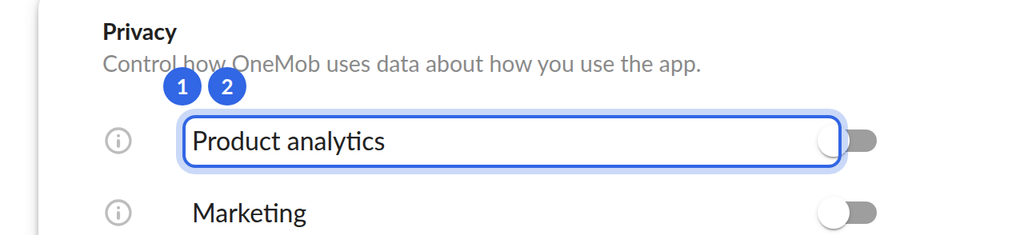
The Privacy tab controls how OneMob uses data about how you use the app. Each switch is saved as soon as you change it.
- Product analytics: helps OneMob see which features are used and debug errors. Only collected while this is on.
- Marketing: lets OneMob measure its advertising and partner referrals. It stays off while your browser sends a Global Privacy Control signal.
Click Cookie details to read what each category stores. For the cookie card you see when you first open OneMob, see Manage your cookie and privacy choices.
Was this helpful?