Connect your email provider so OneMob sends your emails through your own domain, and connect your CRM so OneMob tracks your activity to it. You do both from the Integrations page of your account.
Email and CRM integrations are available on the Pro plan and up. Your OneMob admin chooses which CRM your organization uses.
Connect your email
- Open Account > Integrations.
- In the Emails section, open the Providers dropdown and choose Office 365 or Gmail.
- Click Connect.
- Sign in to your email account in the window that opens and give OneMob all the permissions it asks for.
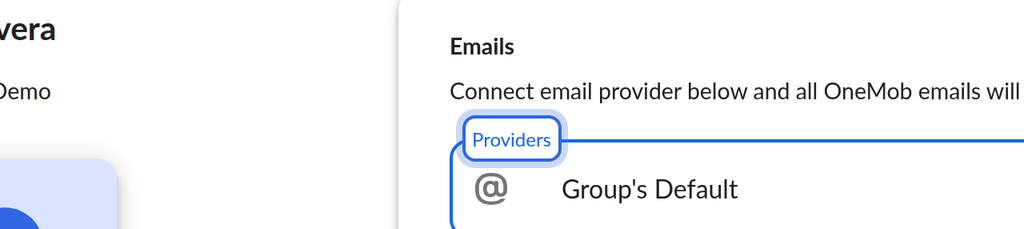
The section shows Connected. From now on, OneMob emails are sent through your email domain. To go back to sending through OneMob, choose Group's Default in Providers (on the Pro and Pro Max plans this option is called No provider selected) and click Save. To disconnect, click Disconnect.
Connect your CRM
Your OneMob admin chooses the CRM for the whole organization: Salesforce, MS Dynamics, Zoho, Outreach, HubSpot or Pipedrive. You then connect your own CRM account.
- Open Account > Integrations.
- In the CRM section, check that your organization's CRM is shown, for example Salesforce is not connected.
- Click Connect.
- Sign in to your CRM in the window that opens and allow access.

The section shows your CRM as connected, and OneMob starts tracking your activity to it. You can disconnect at any time with Disconnect.
For admins: choose your organization's CRM
- Click Control panel in the left menu, then click Admin.
- Click the Settings tab, then Integrations.
- Next to CRM, click Edit.
- Choose your CRM in CRM application. For MS Dynamics, also enter your Host URL.
- Click Save.
Track activity with a BCC address instead
If your CRM gives you a BCC email address, you can track email communication without a full integration. In the BCC Tracking section, enter the address in CRM BCC email and click Save. OneMob adds that address to the BCC field of your emails.
If it does not work
- The CRM section says No CRM has been selected by the organization admin: ask your OneMob admin to choose a CRM, as described above.
- Clicking Connect opens an upgrade message: your plan doesn't include this integration. Ask your OneMob admin to upgrade to Pro or higher.
- The Emails section says Emails are disabled for your organization: your admin has turned off emails. Contact your OneMob admin.
- The Emails section still says your provider is not connected after you sign in: click Connect again and allow every permission OneMob asks for.
For provider-specific help, see Office 365 Email Integration or Connect Your OneMob Account to MS Dynamics.
Was this helpful?