The content details report is a CSV file that shows how each piece of your users' content performed in a date range: who created it, how often it was viewed, in how many microsites, and how long people watched it. Admins and managers can export it from the control panel.
Who can export the report
- Admins get content from every user in the account.
- Managers get content from the users on the teams they manage.
You can narrow the report to one team when you export it.
Export the report
- Open the Control panel from the left side of your dashboard.
- Click Metrics, then the Content tab.
- Click Export.
- Optional: in Export report, choose a team instead of All teams.
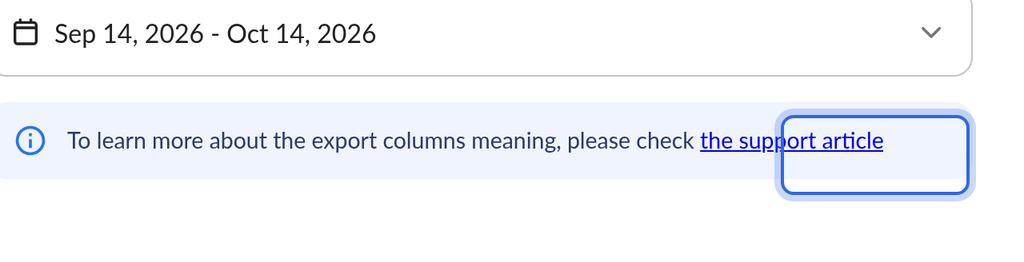
- Choose the date range. It covers the last 30 days unless you change it.
- Click Export.
What happens next
OneMob generates the report in the background and emails you a link to download the CSV file when it is ready. If it does not arrive within a few minutes, check your spam folder, then export again.
Columns in the report
The report lists each piece of content that had activity in the date range you chose. Content with no activity in that range is not included.
- User: the user who created the content.
- User Email: that user's email address.
- Type: the kind of content, such as video, document, image or link.
- Title: the content's name in the OneMob library.
- URL: a direct link to the content.
- Views: the number of activities on the content in the date range.
- Microsites: the number of microsites where the content had activity in the date range.
- Total Watch Time: the total time viewers spent watching the content, in seconds.
- Average Watch Time: the average watch time per activity on the content, in seconds.
- Created At: the date and time the content was created.
If you do not see Export, your plan does not include reports. The report is not available on the Forever Free plan.
Was this helpful?