The summary report is a CSV file that shows, for one microsite, how each recipient engaged with it: whether the email reached them, and how many times they opened, viewed, watched, clicked, forwarded or replied. Use it to see who is most interested and follow up with them.
Export the summary report
- Open Microsites from the left side of your dashboard.
- Click the microsite you want a report for.
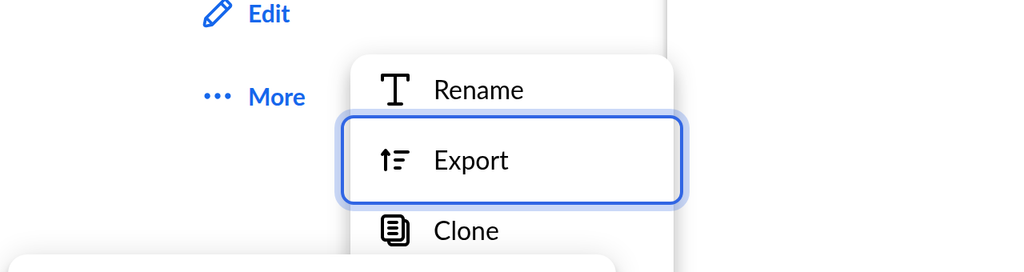
- Click More.
- Choose Export.
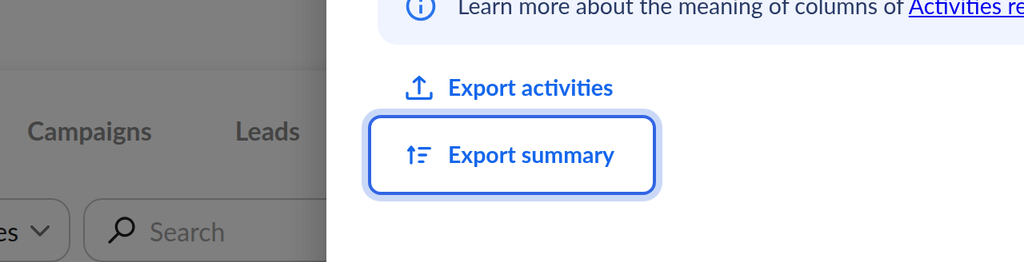
- Click Export summary.
OneMob confirms with Your CSV export was successfully sent. Click Close to return to the microsite.

What happens next
OneMob generates the report in the background and emails you a link to download the CSV file when it is ready. If it does not arrive within a few minutes, check your spam folder, then export again.
If you do not see Export in the More menu, your plan does not include reports. The report is not available on the Free plan.
Columns in the report
The report has one row for each link created for the microsite, such as each campaign recipient. A dash (-) means the link is not tied to a contact.
- First Name: the recipient's first name.
- Last Name: the recipient's last name.
- Email: the recipient's email address.
- Status: the delivery status of the email sent to the recipient.
- Unsubscribed: Yes if the recipient unsubscribed, otherwise No.
- Bounced: Yes if the email bounced, otherwise No.
- Activities: the total number of activities by the recipient.
- Opens: the number of times the recipient opened the email.
- Views: the number of times the recipient viewed the microsite.
- Watches: the number of times the recipient watched a video.
- Clicks: the number of times the recipient clicked content, or viewed or downloaded a document or image.
- Meeting Clicks: the number of times the recipient clicked your meeting link.
- Forwards: the number of times the recipient forwarded the microsite.
- Replies: the number of responses the recipient sent you from the microsite.
- Watch Time: the total time the recipient spent watching videos.
- Exists in CRM?: Yes if the recipient is in your connected CRM. This column appears only when you have a CRM connected.
Related
The Export panel also has Export activities, which lists every individual activity on the microsite with its time and viewer. To learn which actions count as engagement, see How the engagement rate is calculated.
Was this helpful?