As an admin, you manage your OneMob plan yourself from the Subscription page: upgrade from Free, move between Pro and Pro Max, downgrade, change how often you pay and add users. To compare what each plan includes, see the OneMob pricing page.
Plans
- Free: record videos, build microsites and track clicks.
- Pro: organization branding, email blasts, teams, CRM integrations and more.
- Pro Max: everything in Pro, plus video dubbing and a bigger AI video allowance.
- Enterprise: custom contract, SSO, dedicated support and tailored limits.
Pro and Pro Max are billed per user, monthly or annually.
Open your subscription
- Open the Control panel and click Admin.
- Click Subscription.
On the Free plan, you can also click Upgrade to PRO at the top of any page to open it.

Upgrade from Free to Pro or Pro Max
- Next to Plan, click Change.
- Choose Pro or Pro Max and click Next.
- Choose Pay monthly or Pay annually.
- Optional: click Enter coupon code, type the code and click Apply.
- Check the total and click Next.
- Enter your payment details and click Upgrade.

When the payment goes through, Plan updated confirms your new plan and its renewal date. Click Ok.
Apply a coupon
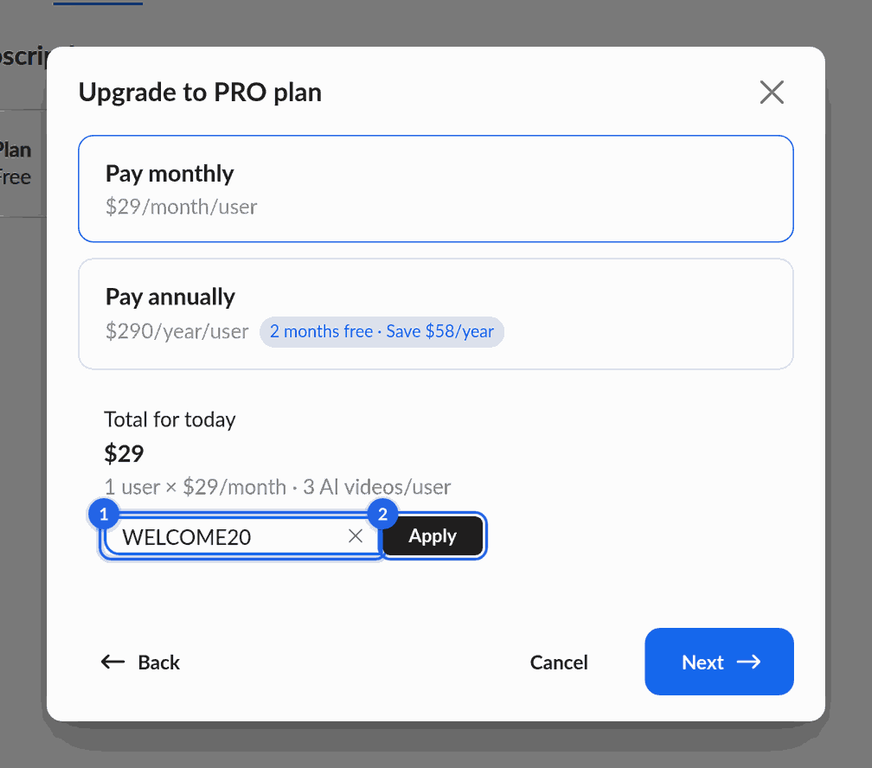
You can apply a coupon when you upgrade from Free. The discount appears under the total together with how long it lasts: a number of months on monthly billing, and first year only or a number of years on annual billing. A code that is not active, or that was issued for a different plan, shows Coupon is not valid. To remove a coupon, click the X in the code field. If you go back and change the plan, apply the coupon again.
Switch between Pro and Pro Max
- Next to Plan, click Change.
- Choose the other plan and click Next.
- To upgrade to Pro Max, click Confirm change.
- To downgrade to Pro, click Next, review what changes, then click Downgrade to Pro.
A change between Pro and Pro Max applies immediately and is charged to the payment method on file. The difference for the current period is prorated. After a downgrade to Pro, your AI video allowance per user drops to the Pro amount.
Downgrade to Free
- Next to Plan, click Change.
- Choose Free and click Next.
- Review what changes, then click Downgrade to Free.
Your paid features stay active until the end of the period you already paid for. After that, AI video generation, organization branding, email blasts and other paid features turn off. Until then, the Subscription page shows when your subscription will be canceled, and you can click Reactivate to keep it.
Move to or from Enterprise
- Next to Plan, click Change.
- Choose Enterprise (or, on Enterprise, the plan you want) and click Next.
- Tell us what your team needs and click Send.
Our team follows up to set up or change your Enterprise plan.
Change your billing cycle or payment details
- Next to Billing cycle, click Switch to yearly or Switch to monthly and confirm.
- Next to Payment details, click Change to update your card.
Add or remove users
Pro and Pro Max are billed for each user in your account. You manage users in Admin > Users, and you can add them from the Subscription page.
- On the Subscription page, next to Users, click Add users.
- In Emails, enter the email addresses of the people to invite, separated by a comma or semicolon.
- Click Invite.
- On Pro and Pro Max, confirm the Bill Increase message with Yes.
On the Enterprise plan, you can also invite users by uploading a CSV file. To lower the number of users you pay for, remove users from Admin > Users.
If something goes wrong
- If a payment fails, the Subscription page shows an alert. Update your card under Payment details, then try again.
- For any other billing question, email billing@onemob.com and a member of our team will help you.
Was this helpful?