With the OneMob plugin for Salesloft, you add a tracked microsite link to a Salesloft email, reply, email template or cadence step without leaving Salesloft. Recipients open your content on a branded OneMob page, and every view and click is tracked in OneMob.
Connect OneMob to Salesloft
The connection starts in Salesloft, not in OneMob. There is no Salesloft option on the Integrations tab of your OneMob account settings.
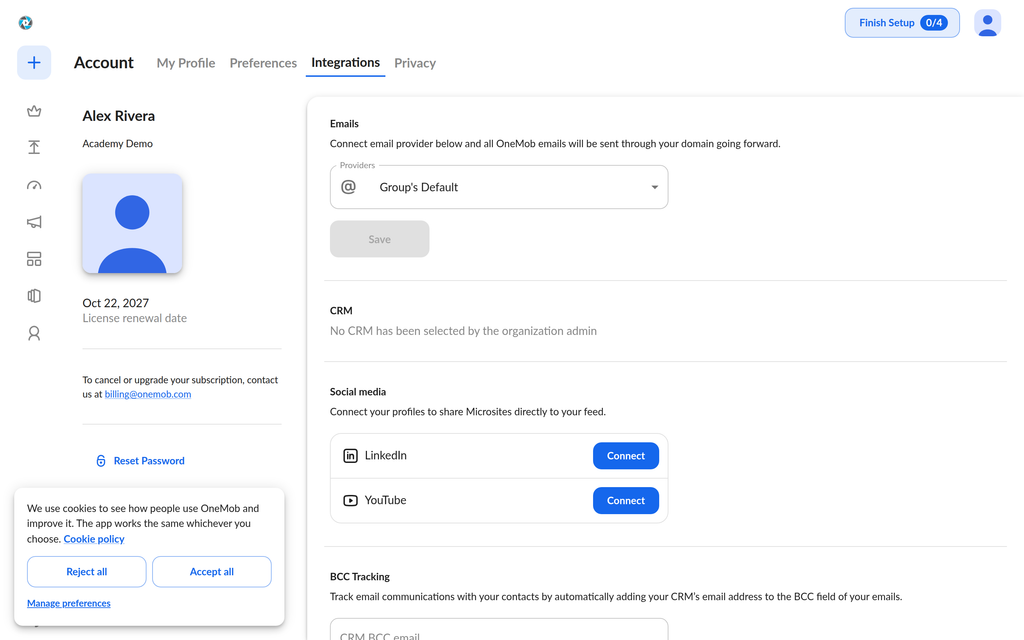
- Ask your Salesloft admin to add the OneMob integration to your Salesloft account.
- In Salesloft, open the email editor and open the OneMob panel.
- The first time you use it, the panel shows Welcome to OneMob!. Click Sign In and sign in with your OneMob account.
After you sign in, the panel opens your microsites.
Add a microsite to a Salesloft email
- In Salesloft, create an email, reply to one, edit an email template or open a step in a cadence.
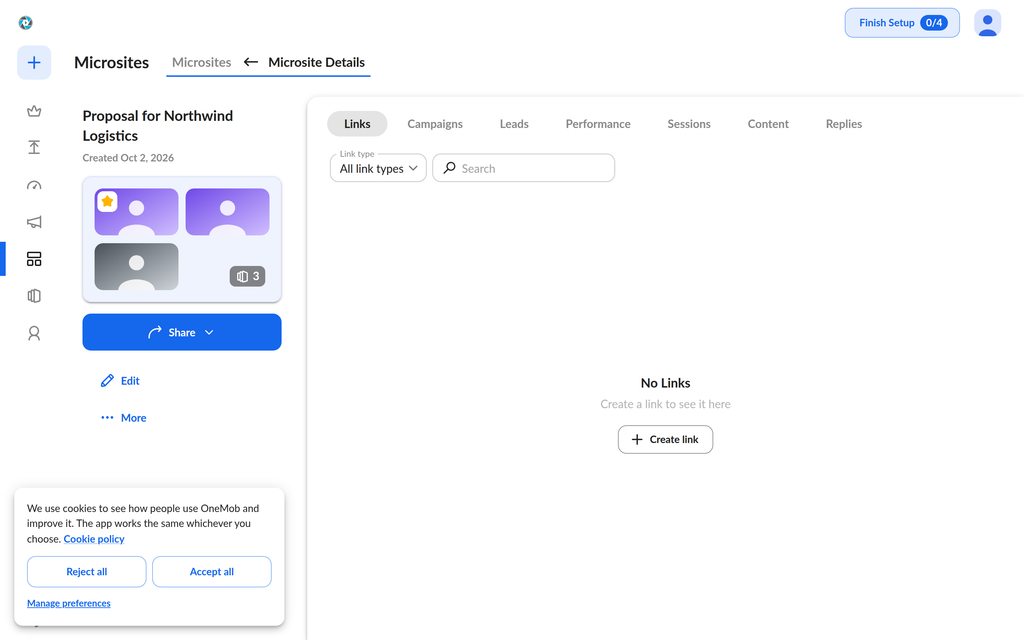
- Open the OneMob panel. The Select microsite screen opens and lists your microsites.
- Find the microsite you want to share. Search by title, sort the list, or filter by tags. To make a new one, click New microsite.
- Select the microsite and click Next.

- On the Settings screen, change the name under Name the link if you want. It defaults to the app name and the current time.
- Under Set Contact, choose the contact the link is for, so the activity is tracked to that person.
- If your organization has connected a CRM, choose the record to log the activity against under Set Opportunity or Set Deal, depending on your CRM.
- Click Add Link.
What happens next
OneMob inserts the link into your Salesloft email: a Watch Video or View Content link, with the microsite thumbnail when it has one. If the microsite has a password, the password is added below the link. The link carries the recipient's email, first name, last name and company from Salesloft, so you can see who engaged.
When a recipient opens the link, they see your microsite on a branded OneMob page. Views, watches and clicks appear in OneMob, and in your CRM when one is connected.
If something does not work
- You do not see the OneMob panel in Salesloft: ask your Salesloft admin to confirm the OneMob integration is installed for your team.
- The panel shows Welcome to OneMob! again: click Sign In and sign in with your OneMob account.
- Next is unavailable: select a microsite first.
If you still need help, send a request to the OneMob support team.
Was this helpful?