Cut unwanted parts out of a video in OneMob without recording it again. You mark the sections to remove, check the result in the preview, and save.
Open the video in the editor
- Go to your Library.
- Hover over the video and select the checkbox on its card.
- Click Edit in the actions above your content.
Trimming is available when you edit one video at a time. If you select several videos, the trim bar is hidden.
Mark the sections to remove
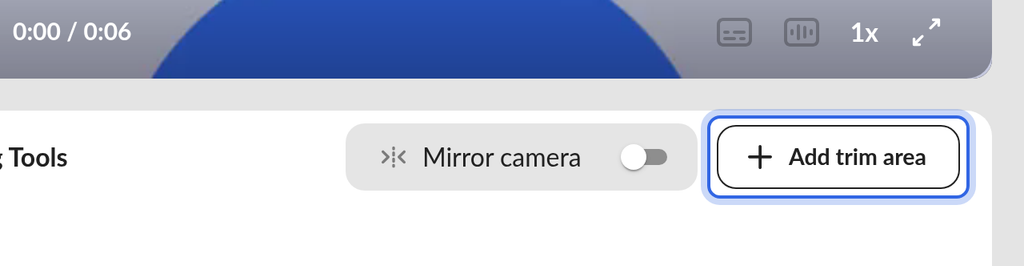
- Click Add trim area. A trim area appears on the trim bar below the video. Everything inside it will be cut.
- Drag the edges of the trim area over the part you want to remove, or type its exact start and end times.
- To cut another section, click Add trim area again.
- Play the video in the preview to check your cuts.
Remove a trim area
- Select the trim area on the trim bar.
- Click the red remove icon, a circle with a line through it, on that trim area.
Save your changes
- Click Save.
Saving applies your edit to this video. Keep original in the Library is on by default, so OneMob first saves a copy of the untrimmed video to your Library. To replace the original without keeping a copy, click the arrow next to Save and turn off Keep original in the Library before you save.
Need more control?
When you edit a single video, click New editor at the top of the editor to switch to the New Video Editor. It shows your video on a timeline and lets you set exact start and end times for each clip. Switching discards changes you have not saved, so OneMob asks you to confirm first. To learn more, see Video and Content Editing.
If something does not work
- Save stays unavailable until you add at least one trim area or make another change.
- If someone else is editing the same video, OneMob tells you and you cannot edit it until they finish.
Was this helpful?