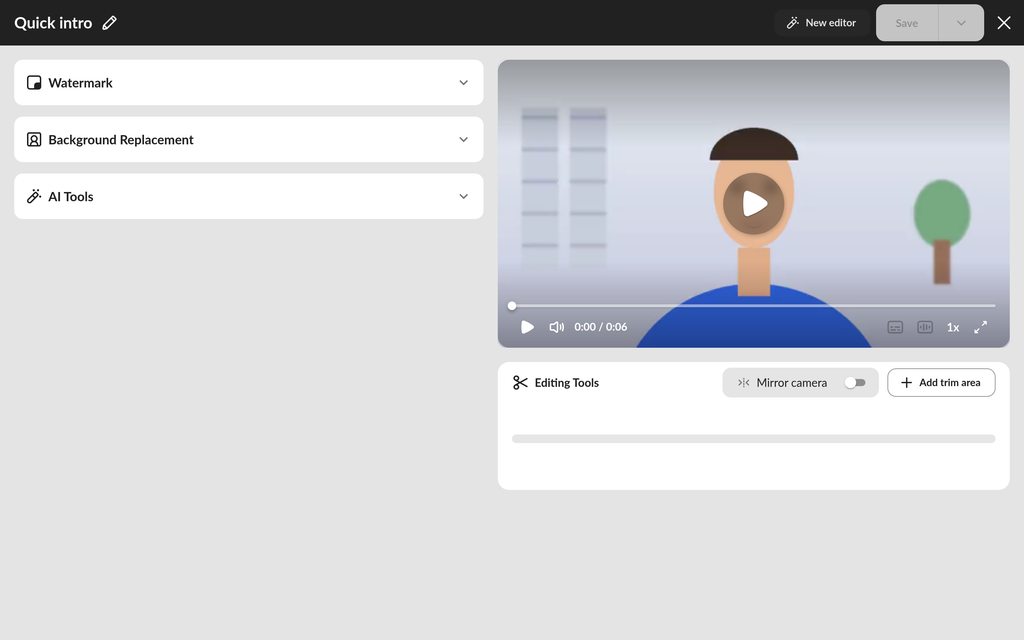
OneMob gives you two ways to edit a video. The Classic Editor handles quick edits such as trimming, watermarks, background replacement and AI tools, on one video or several at once. The New Video Editor gives you a multi-track timeline for combining clips, adding text and images, and fine-tuning timing. A video editing tutorial is also available.
Open a video for editing
Classic Editor
- Go to your Library.
- Hover over the video and select the checkbox on its card. To edit several videos the same way, select up to 10.
- Click Edit in the actions above your content.
New Video Editor
- Open the video from your Library.
- Click Edit on the video's page.
You can also switch from the Classic Editor by clicking New editor at the top when you edit a single video, and switch back with Classic editor. Switching discards changes you have not saved, so OneMob asks you to confirm first.
Choose an editor
Both editors can trim videos. Only the New Video Editor offers:
- A multi-track timeline
- Keyframe animations and transitions between clips
- Precise start and end timing
- Volume, opacity and playback speed controls
- Rotation and placement on the canvas
Use the Classic Editor for a fast fix or to apply the same change to several videos. Use the New Video Editor when you need to combine clips, add text or graphics on a timeline, or add transitions and animations.
Edit in the Classic Editor
The Classic Editor has three sections: Watermark, Background Replacement and AI Tools. The trim bar sits below the video preview.
Add a watermark
- Open Watermark.
- Choose a watermark from the Uploaded tab (your own) or the Group tab (shared by your admin).
For details, see Adding a Watermark.
Replace the background
- Open Background Replacement.
- Choose Green Screen Replacement if you recorded in front of a green screen, or AI-Powered Replacement if you did not.
- Click Add image or video and choose the new background from your Library.
AI-Powered Replacement is part of OneMob's AI tools. If your plan does not include them, OneMob shows an upgrade prompt. For details, see Editing Green Screen Background.
Use AI tools
Open AI Tools and turn on any of these:
- Correct Eye-Tracking: adjusts your eyes so you appear to look at the camera. See Correct Eye-Tracking.
- Remove filler words & silences: removes words like "um" and "uh" and long pauses.
- Enhance Audio: reduces background noise and steadies the volume. See Enhance Audio in Your Videos.
If your plan does not include AI tools, turning one on opens an upgrade prompt instead.
Trim a video
Trimming is available when you edit one video at a time.
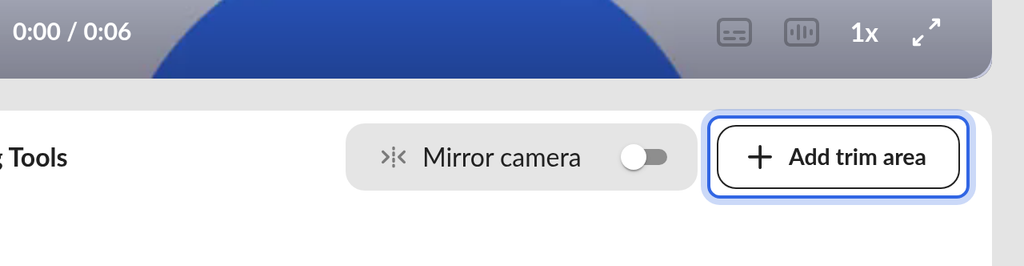
- Click Add trim area. Everything inside the trim area will be cut.
- Drag the edges of the trim area over the part you want to remove, or type its exact start and end times.
- To cut another section, click Add trim area again.
- To remove a trim area, click its red remove icon.
- Play the video in the preview to check your cuts.
For details, see Trimming Your Video.
Save your changes
- Click Save.
Saving applies your edits to the video. Keep original in the Library is on by default, so OneMob first saves a copy of the unedited video to your Library. To replace the original without keeping a copy, click the arrow next to Save and turn off Keep original in the Library before you save.
Merge videos
- In your Library, select 2 to 5 videos with the checkboxes on their cards.
- Click Merge Videos.
- Drag the videos into the order you want.
- Click Save as new.
OneMob creates a new video and keeps the videos you merged. If you select more than 5, only the first 5 are merged.
Change the thumbnail
- In your Library, select the video with the checkbox on its card.
- Click Change thumbnail.
- Choose an image from your library or your device, capture a frame from the video, or take a new picture.
- Optional: add Thumbnail Text and set its Text alignment, apply a Watermark, or add a gradient or color overlay.
Rename a video
- In your Library, select the video with the checkbox on its card.
- Click Rename.
Edit in the New Video Editor
Timeline
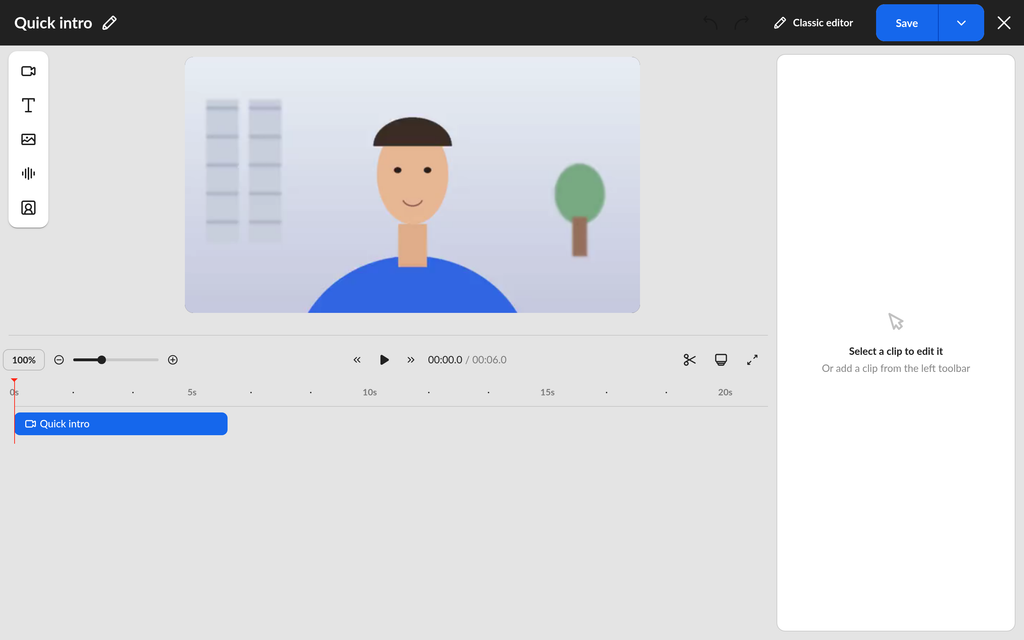
The timeline along the bottom shows separate video and audio tracks, a playhead and a time readout, so you always know where you are. On a trackpad or touch screen, pinch the timeline to zoom in or out.
Add elements
Use the icons on the left to add a video, text, an image, music or a background at the playhead.
Adjust a clip
Select a clip on the timeline to open its controls:
- Volume and Opacity
- Speed: 0.5x, 1x, 1.5x or 2x
- Rotation, in degrees
- Placement/Alignment on the canvas
- Start/End Timing for precise trimming
- Transitions and Keyframe Animations
Work with text and images
- Click a text or image on the canvas to select it. Its track is focused on the timeline.
- Drag a text or image to move it. Grid lines appear and it snaps into place so you can align it.
- Each new text uses the styling you last applied to a text.
- Choose Bullets or Numbers to turn a text into a list.
Keyboard shortcuts
Press ? in the editor to see the list of keyboard shortcuts, such as Space to play or pause and S to split the clip under the playhead.
Let someone else edit a video
- In your Library, select the video with the checkbox on its card.
- Click Set access.
- Choose Set as Editor in the list next to the search field.
- Search for and select the person.
- Click Save.
You can change access only for videos you own. Set as Editor is offered only when every item you selected is a video. Only one person can edit a video at a time; if someone else has it open, OneMob tells you when you try to edit it.
Edit a video that is on a live microsite
When you save, the microsite shows the new version of the video. With Keep original in the Library on, the earlier version stays available in your Library.
Was this helpful?