The Control Panel is where admins and managers review how the whole group is performing and manage users, teams, content and settings. What you see depends on your role; see Admins, Managers, Basic Users | What's the Difference?
Open the Control Panel
- Click the crown icon in the left navigation.
- Choose Metrics, Admin or Approvals.
Metrics
Metrics shows performance for your entire group or team rather than for one person. A walkthrough video titled "Metrics and Analytics" is in the Video Training Center.
Review your group's campaigns
- In Metrics, open Campaigns.
- Use search, the date range, tags, status and sort to narrow the list.
- Click a campaign to open its details.
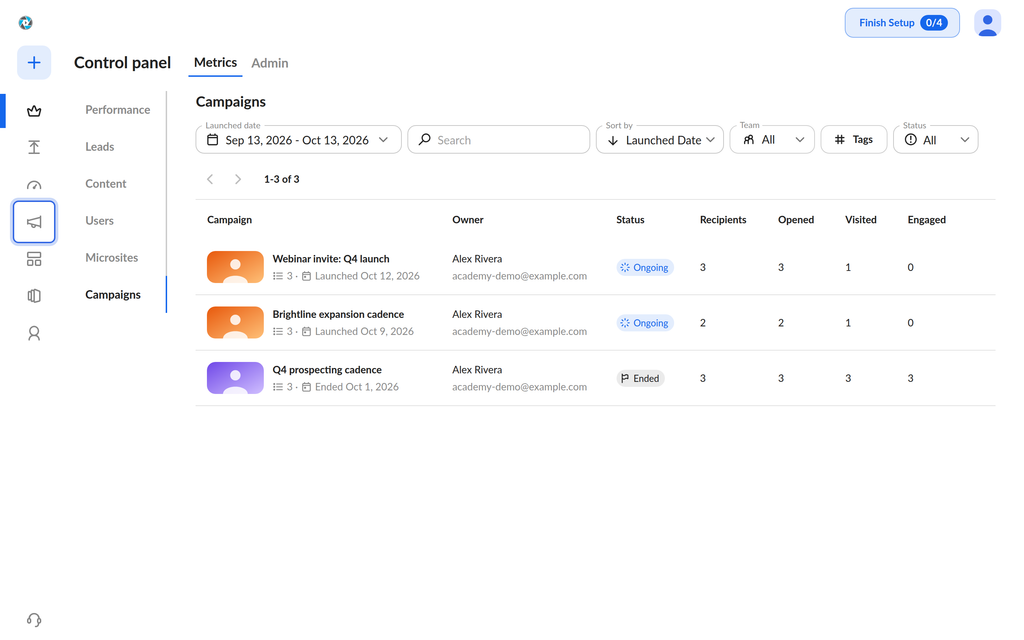
The list shows the campaigns of every user in your group, with the owner, status, recipients, opened, visited and engaged counts. The date range filters which campaigns appear by their start or end date; it does not recalculate the counts. The list is read-only, so campaign actions are not available here.
Rename a microsite
- Open Metrics > Microsites.
- Open the three-dot menu on the microsite's row, or on its details page.
- Choose Rename and enter the new name.
The new name appears everywhere the microsite is shown. Admins and managers can rename microsites from Metrics.
Admin
Use Admin to maintain your organization's account.
- Organization: your company details, the default text at the bottom of microsites, and your privacy policy link.
- Branding: logos, watermarks, themes and fonts for your company. Watch the Branding walkthrough video.
- Users: add or remove OneMob licenses, give admin or manager access, and organize users into teams. Add users one at a time, or upload several at once with a CSV file.
- Content: all content uploaded by users in your organization. Delete a microsite here to remove inappropriate content entirely.
- Subscription: upgrade to the Pro subscription.
- Settings: organization-wide settings, grouped into tabs (below).
Merge teams
- Go to Admin > Users > Teams.
- Select the teams you want to combine.
- Choose the merge option and confirm.
Find a setting
Settings has three tabs:
- General: Microsite Defaults, Emailing Rules, Video Auto Approval, Tags and Internal domains.
- Integrations: CRM, Seismic and SMTP.
- Custom fields: Custom Fields and External Custom Fields.
Each setting is a row that shows its current status. Click the button on the row to change it.
Approvals
Approvals lists every video, whatever its status. Approve or decline pending videos here. See Video Approvals for details.
Was this helpful?