A microsite is a personalized page that holds your videos, documents, images and links in one place. Build it once, share it by link, social post or email campaign, and see exactly how each viewer engaged. For a quick overview, watch the getting started video.
Create a microsite
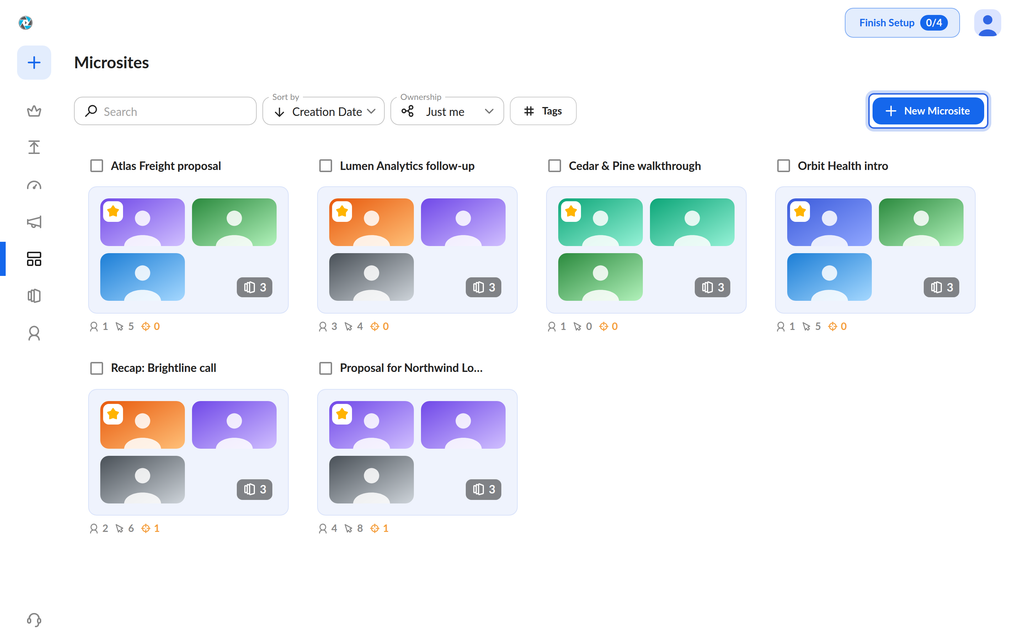
- Click the Microsites icon in the left navigation.
- Click New Microsite.
- Click Create Microsite.
- Choose to start from a template or from a blank microsite.
Add content
A microsite can hold videos, images, documents (PDF, PowerPoint and spreadsheets), links, and a featured item with a call to action.
- Click Add Content.
- Select content from your library, or upload new content.
- Drag the content into the order you want.
The preview on the left updates as you go and shows each content card and video thumbnail as viewers will see them.
Customize the layout
- Click Add Section.
- Choose the type of section to add.
The section types are:
- Buttons: a row of buttons below the featured item for calls to action such as Book a Meeting, Download or Learn More.
- Content: a block of videos, images, documents or URLs from your library or new uploads.
- Embed: custom HTML or CSS, such as a calendar, form, external website or interactive widget.
- Text & Image: plain text and images that add context or a personal message.
Stack sections to build the page you want. An Image and Button section works without text; when you add header or body text, the layout adjusts automatically.
Extras
The Extras section adds optional display features:
- Animated Thumbnail: turn on to show a moving GIF thumbnail, or off for a still image.
- Overlay: text on top of your thumbnail or media.
- Intro: a clip that plays before your main content.
- Outro: a clip that plays at the end.
For the Settings and Goals tabs, see Building a Microsite (Advanced) | Settings and Goals.
Share a microsite
To preview your microsite before sharing, click its thumbnail above the Share button. This sharing video walks through the options below.
Copy a link
- Open the microsite.
- Under Links, click the copy button for the thumbnail, link, embed code or QR code.
- Paste it into your email or post.
Create a tracked link
- Open the microsite and click Share.
- Click Create Link.
- Optional: enter a name in Name (Optional), or edit the end of the URL.
- To track the link to a CRM contact or opportunity, open Advanced Settings at the bottom of the window.
Post to social media
- Open the microsite and click Share.
- Choose Social post.
- Choose LinkedIn, WhatsApp, Facebook or X from Platform.
- Write your post in Text. The microsite link is included in the text by default.
- Click Post.
Send an email campaign
Open the microsite, click Share, then New Campaign. See Introduction to Campaigns for the full steps. Campaigns are not available on the Forever Free plan.
Track engagement
Open a microsite from Microsites, or a sent campaign from Campaigns, to see its analytics:
- Links: views and activity for each link.
- Emails: opens, views and activity for each sent email. Filter by campaign, or sort by Creation Date, Activities, Email Opens or Microsite Views.
- Performance: a chart of engagement over time and a list of activity. Change the date range or the link type.
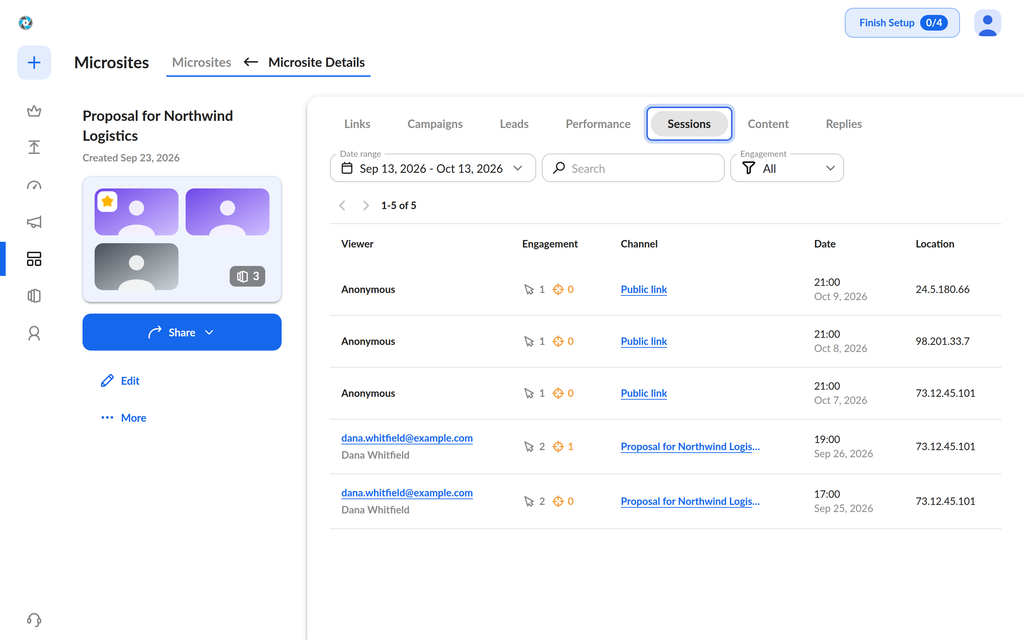
- Sessions: one row per visit, from when a viewer opens the microsite to when they close it.
- Content: total activity for each piece of content.
- Replies: every reply viewers sent.
Review sessions
Each session row shows the viewer, their engagement (clicks and engaging clicks), the channel, the date and the location. If the viewer opened a campaign email right before visiting, the session includes that email open.
- Open Sessions.
- Filter by date range, viewer email or engagement.
- Click a session to see every activity from that visit.
In a session, reactions show the content the viewer reacted to. Hover over a reply to read it.
Was this helpful?