Add your Calendly, Salesloft, Outreach or other scheduling page to a microsite with an Embed section. Viewers can then book a meeting with you without leaving the microsite.
Copy your scheduling link
First, copy the public link to your booking page from your scheduling tool.
Calendly
- In Calendly, make sure the event type you want to share is turned on.
- Click Copy Link on that event type.
For help with Calendly, see the Calendly help center.
Salesloft
- In Salesloft, open your personal Settings and select Calendar.
- Copy your meeting link from Insert Meeting Link.
If your calendar is not set up in Salesloft yet, see Salesloft's setup article.
Outreach
- In Outreach, open Meetings and select Types.
- Open the meeting type you want to share.
- Find Public Calendar Link and click Copy URL.
Other scheduling tools
Search your tool's help center for "meeting link" to find out how to copy the link to your booking page.
Add the Embed section to your microsite
- Open Microsites and click the microsite you want to change.
- Click Edit to open the microsite editor.
- On the Sections tab, click Section.
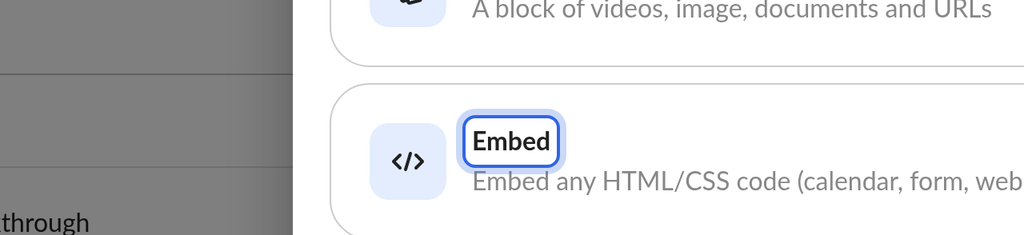
- In the Add section window, choose Embed.
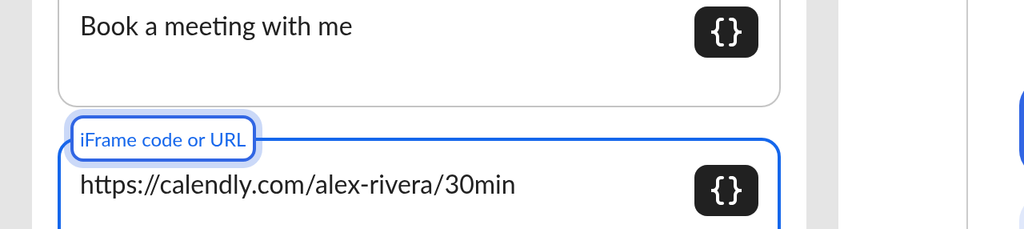
- Optional: type a Heading, for example "Book a meeting with me".
- Paste your scheduling link into iFrame code or URL. You can also paste the full iframe code your scheduling tool gives you; OneMob keeps the link from it.
- Choose a Width (Small, Medium or Large) and set the Height in pixels.
- Check the preview of your microsite next to the section settings to see how the scheduler looks.
- Click Save.
What happens next
Your scheduler now appears in its own section on the microsite. When you share the microsite, viewers can pick a time directly on the page. To share it, see Create, Send, & Track a Microsite.
If the scheduler does not appear
- The section shows a message such as "refused to connect". The site does not allow its pages to be embedded. Check with your scheduling tool whether it offers an embeddable link.
- The section is empty. Make sure iFrame code or URL holds a complete link, such as one that starts with https://.
- The calendar is cut off. Increase the Height of the section.
If you still need help, contact OneMob support.
Was this helpful?