The featured item is the main piece of content at the top of your microsite, usually your video. You add it, change it and fine-tune it in the Featured item section of the microsite editor.
Add a featured item
- Open Microsites and click the microsite you want to change.
- Click Edit to open the microsite editor.
- On the Sections tab, find Featured item. It is the first section in the list and opens by default.
- Click Add Featured Item.
- Choose the video or other content from your Library.
- Click Save.
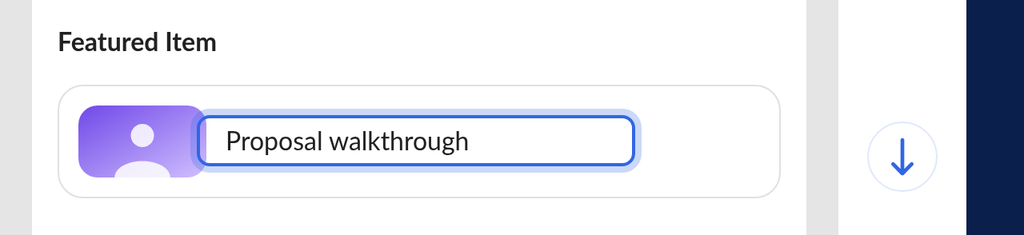
Change or remove the featured item
- In Featured item, hover over the current item.
- To change its thumbnail or title, click the pencil icon, make your changes and confirm them.
- To replace it, click the trash icon, then click Add Featured Item and choose new content.
- Click Save.
Add extras to the featured item
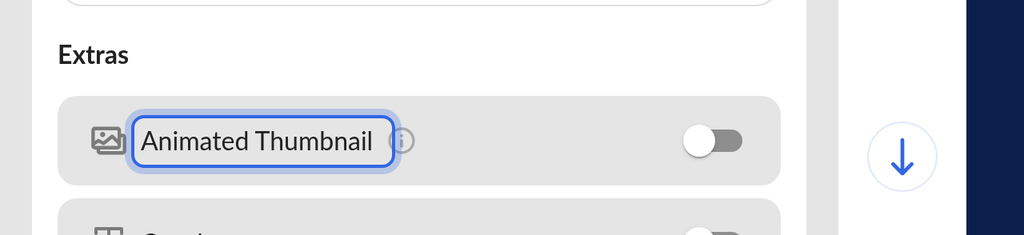
Under Extras in the Featured item section, you can turn on:
- Animated Thumbnail: uses an animated thumbnail when you share the microsite.
- Overlay: shows text over the featured item. It is not available while Animated Thumbnail is on.
- Intro and Outro: play a video before or after your featured video. These work only when the featured item is a video.
What happens next
After you save, viewers see the featured item at the top of the microsite. Changing the featured item on one microsite does not change your other microsites.
To count a view of the featured item as a conversion, set it as a goal on the Goals tab. See Building a Microsite (Advanced) | Settings and Goals.
If you have a question this article does not answer, contact OneMob support.
Was this helpful?