Choose which camera and microphone OneMob uses when more than one is connected, such as a laptop webcam and an external webcam or headset. You pick them in the recorder's Settings.
Choose a camera and microphone in the recorder
- Click the + button at the top of the left menu and choose Record Video.
- Choose a recording mode and click Continue.
- Click Settings in the bar at the bottom of the recorder.
- Under Select Microphone, click the microphone you want to use.
- Under Select Camera, click the camera you want to use. A check mark shows the device in use.
- Turn on Mirror camera if you want to flip the camera image.
- Click the red record button when you are ready.
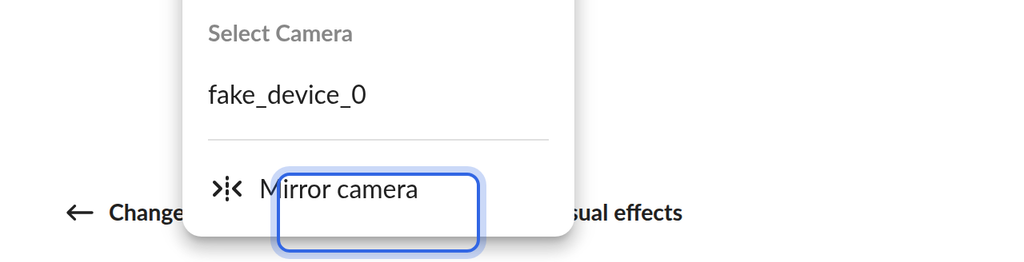
OneMob remembers the devices you choose for your next recording in the same browser.
Things to know
- Settings is available before you start recording. To change devices mid-recording, finish or discard the recording first.
- In Screen mode, Settings lists only microphones, because no camera is recorded.
- If a device is missing from the list, check that it is connected, then close and reopen the recorder.
- If Settings does not appear and the recorder shows Camera and mic are disabled, your browser is blocking access. See Fix camera & microphone access.
Change your browser's default camera or microphone
You can also change the device your browser picks by default.
Chrome
- In a new tab, go to chrome://settings/content.
- Under Permissions, click Camera or Microphone.
- Choose the device you want from the menu at the top of the page.
Firefox
Firefox asks which camera and microphone to use when a site requests them. If you checked Remember this decision, Firefox keeps using your earlier choice. To choose again:
- With OneMob open, click the permissions icon to the left of the address bar.
- Click the X next to the camera or microphone permission to clear it.
- Refresh the page and open the recorder. When Firefox asks, choose the device you want.
Still need help
If you use another browser or the right device still does not appear, contact OneMob support.
Was this helpful?