Your microsites show your name, contact details and social links. Update them on your Account page to change them for all your microsites, or in the microsite editor to change them on one microsite only.
Update your contact information for all microsites
- Open your Account page, or click your profile picture in the top-right corner and open your account.
- On the Personal info tab, update your First Name, Last Name, Phone, Email and Title.
- Click Save.
- Open the Links tab to update your LinkedIn, X, Facebook, Instagram and YouTube links and your Meeting URL.
- Click Save.
For help finding the right link for each social profile, see How to add a social media profile link to your account.
Change your contact information on one microsite
- Open Microsites and click the microsite you want to change.
- Click Edit to open the microsite editor.
- Select the Settings tab at the top of the editor.
- Open Personal info.
- Change the fields you need: Full Name, Organization, Meeting URL, Phone, Email and your social links. Use the switch next to a field to show or hide it on this microsite.
- Click Save.
What happens next
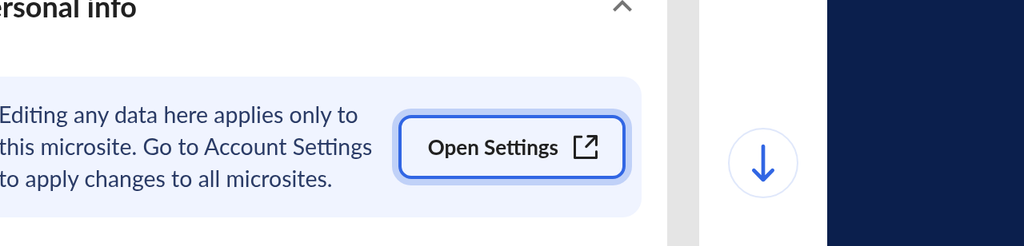
Changes you make in the microsite editor apply only to that microsite. The editor reminds you of this with the message "Editing any data here applies only to this microsite." To change your details everywhere, click Open Settings in that message, which opens your Account page in a new tab.
Fields you leave empty in the editor show your Account details as a placeholder.
If you have a question this article does not answer, contact OneMob support.
Was this helpful?