OneMob's AI Video Generator builds a complete video, with script, visuals and avatar, from a short description you type. This guide shows you what to put in the prompt so you get a polished result on the first or second try.
You can see a full demo here. For the full walkthrough of where to generate, see Generate a Video with AI.
The one rule: be specific. A vague prompt forces the AI to guess; a clear one gives it direction.
Write your first prompt
Every strong prompt answers five questions. Write one line for each:
- Goal: what type of video, and how long? For example, a 60-second product explainer.
- Audience: who is it for? For example, mid-market sales prospects.
- Tone: how should it feel? For example, confident and conversational.
- Key points: the two to four things it must say.
- Call to action: the one thing you want the viewer to do. For example, book a demo.
Template to copy:
Create a [length] [video type] for [audience]. Tone: [tone]. Cover: [point 1], [point 2], [point 3]. End with a clear call to action: [action].
Filled-in example:
Create a 60-second product explainer for mid-market sales prospects. Tone: confident and conversational, fast pace, clean visuals. Cover: the problem of slow follow-up, how OneMob's AI video fixes it, and the time it saves. End with a clear call to action: "Book a 15-minute demo."
To generate the video:
- Click + in the navigation menu and select Generate AI Video.
- In the Create video with AI window, type or paste your prompt.
- Optionally, click Improve prompt with AI to have OneMob rewrite your prompt with more detail.
- Click Generate.

OneMob confirms with AI video generation started. When the video is ready, review it, then refine your prompt if needed.
The controls that change your video
You are not setting camera angles or color grades; the AI handles production. These are the controls that make the difference.
The prompt
This is where most of your control lives. Always include the goal, audience, tone and pacing. The more context you give, the less the AI has to invent.
- Instead of: "Make a product overview video."
- Try: "Create a 60-second product overview for sales reps to send to mid-market prospects. Confident, conversational tone, fast pace, clean visuals."
Add a script
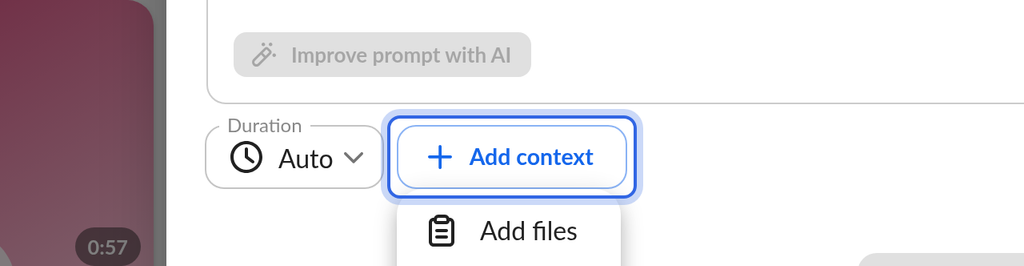
If you have required messaging, a value proposition or approved legal wording, click Add context and choose Add script to attach one of your saved scripts. The AI builds the video around your exact words, which suits sales pitches, regulated messaging and anything where the wording must not change. Because your script is used as written, how you write it matters most; see Write a script worth saying below.
The voiceover is the spoken narration. When you add a script, you are writing the voiceover.
Add files
Click Add context and choose Add files to give the AI your own material, such as product images, screenshots or a PDF one-pager. The AI uses them as visual context, so your video shows your real product and brand instead of generic visuals.
You can add PNG, JPG, MP3, MP4, WebM and PDF files, up to 32 MB per file. Pick them from your Library or upload them.
Avatar
Click Avatar above the prompt to choose who presents the video:
- Auto: the AI picks an avatar for you.
- Use my avatar: presents with your own AI avatar. If you do not have one yet, this option reads Create my avatar and opens the AI Avatar tab of your Account page.
- Select stock avatar: choose from a set of ready-made avatars.

If you present on camera regularly, using your own avatar keeps your videos recognizably you. There is no separate voice setting.
Duration
Use Duration to choose Auto, 15 sec, 30 sec, 1 min, 2 min or 3 min.

The composer has no orientation or style setting. To keep a video on brand, name your colors in the prompt and add files with your logo or product images.
Write a script worth saying
When you use Add script, the words are the video. A strong script produces better delivery, better pacing and better visual choices, because there is something real for the AI to work with. These patterns work well:
Stories beat lists. A first-person story, such as "I tried this, then that happened", gives the AI richer material than bullet points. "Here are three reasons to use video" is a list. "I stopped writing long emails and started sending short videos, and my reply rate tripled" is a story.
Bold beats safe. A pointed opener, such as "Stop sending follow-up emails. They don't work anymore.", earns the next ten seconds of attention and pushes the AI toward bolder choices.
Flow beats structure. Write the way you would talk to a colleague. Read your script aloud before you generate. If a line feels awkward to say, it will sound awkward in the video.
Skip the rhetorical questions. "Are your emails getting ignored? Tired of chasing prospects?" sounds unnatural from a single presenter. Make the statement instead.
Weak script vs. strong script
Weak: OneMob lets you create personalized videos, host them on microsites, and track engagement in your CRM. Reps see higher open rates and shorter deal cycles.
Strong: Three weeks ago a deal I'd written off went quiet for a month. So before I closed it lost, I sent one last video, thirty seconds, just me, recapping why we'd be a fit. They watched it twice, forwarded it to their VP, and we signed Friday. I didn't change the offer. I changed the format.
Both say the same thing. The second one gets watched.
Add tone, not timestamps
After the script, the most useful thing to add is a tone line: how the video should feel, not how it should be sliced up.
Do this: [your script] Tone: like a customer success manager checking in with a customer they like: warm, confident, no corporate filler. Then set Duration to 30 sec.
Avoid this: Scene 1 (0-5s): Hook. Scene 2 (5-12s): Point 1. Scene 3 (12-22s): Point 2.
Timestamped scene breakdowns give you precise control but a robotic, choppy result. Describe the tone and let OneMob set the rhythm.
Templates you can reuse
Replace the text in brackets with your details. Keep the prompts that work in a note and reuse them.
- Product explainer: Create a 90-second product explainer for [audience]. Tone: clear and modern. Cover: the problem, how [product] solves it, and the top benefit. End with: "[call to action]."
- Cold outreach: Use Add script. Open with a real number or moment from your own experience, name the problem the prospect feels, say what you tried instead and what happened, and close with a human reason to reply. Tone: a rep sharing what's working with a peer, direct, no marketing gloss. Set Duration to 30 sec.
- Sales follow-up: Create a 45-second follow-up video for [prospect name or role] after our call. Warm, personal tone. Recap the main thing they cared about, [topic], and the next step. End with: "[call to action]."
- Renewal or check-in: Create a 30-second check-in for [customer]. Lead with a real result they've gotten, acknowledge where you can do more, and make renewing feel like the obvious next chapter, not an invoice. Tone: warm, appreciative, confident.
- Executive or account message: Use Add script. Write a warm, universal message to a key account; avoid idioms and slang and keep sentences short. Add: "This is a direct-to-camera message: one person, one camera, sincere eye contact throughout. The presenter should be on screen the entire video."
- Social or awareness: Create a fast-paced 30-second video for LinkedIn about [topic]. Energetic, modern tone, strong hook in the first 3 seconds, bold on-screen captions. End with: "[call to action]."
- Training or enablement: Create a 2-minute training video explaining [process or feature] for [internal team]. Calm, instructional tone. Walk through the steps in order and keep visuals clean and simple. End with a quick recap.
See the difference
Vague: "Make a cool AI video about our product."
Specific: "Create a 60-second product explainer for startup founders. Confident, conversational tone. Cover slow follow-up, how OneMob AI video fixes it, and the time saved. Clean visuals. End with: 'Book a demo today.'"
Same tool, very different output, because the second prompt makes every decision for the AI.
Make it translation-ready
If you will translate a video for an international account, the presenter's face needs to stay visible the whole time so lip-sync works. Use Add script, write clear universal language with short sentences and no idioms or slang, and include:
This is a direct-to-camera message: one person, one camera, sincere eye contact throughout. The presenter should be on screen and speaking for the entire video.
Describe what you want, not what you don't. "No B-roll, no cutaways" tends to produce a flat result. The wording above keeps the presenter on screen while still allowing tasteful overlays.
Troubleshooting: my video came out wrong
You do not need to start over. Change one thing in your prompt and generate again.
- The tone is wrong (too stiff or too casual). Name the tone explicitly, such as "confident and conversational", "warm" or "energetic".
- The visuals are generic. Use Add files to add your product images, screenshots or a PDF.
- The video is too long or too short. Choose a Duration instead of Auto.
- The video is off-brand. Name your brand colors in the prompt and add files with your logo or product images.
- The avatar is wrong. Choose Use my avatar or Select stock avatar instead of Auto.
- Required wording is missing. Use Add script to lock in your exact messaging.
- The delivery sounds robotic or choppy. Remove per-scene timestamps; write a flowing script and add a tone line instead.
- The video tries to cover too much. Cut to two or three key points, or split it into two shorter videos.
- The window says "Limit reached". You have used all the AI videos your plan includes this month. See Plans and monthly limits below.
Tip: refine one thing at a time. Small adjustments work better than full rewrites, and you learn which prompts work for your team.
Do's and don'ts
Do
- Lead with the goal and audience, then add detail.
- Add files whenever you have them.
- Read your script aloud before generating.
- End with a single, clear call to action.
- Review and edit before sharing. You can trim the video after it generates.
Don't
- Write a vague one-liner and expect a polished result.
- Slice the script into timestamped scenes.
- Build the script around rhetorical questions.
- Tell the AI what not to do; describe what you want instead.
- Stack five different messages into one video.
- Skip the call to action.
After you generate
A finished video is the start, not the end. To get the most from it:
- Share it on a microsite so it opens instantly on any device, with your branding and a clear call to action around it.
- Send it at scale with Campaigns.
- Track engagement in your CRM: who watched, for how long and what they clicked next, so you know when to follow up.
Plans and monthly limits
Each plan includes a number of AI videos per user each calendar month:
- Pro: 3 AI videos per month.
- Pro Max: 30 AI videos per month.
- Enterprise: available when AI video is turned on for your organization, with the monthly limit agreed for your organization, if any.
- Free: AI video is not included. When you select Generate AI Video, OneMob asks you to upgrade.
The Create video with AI window shows how many videos you have left. Your count resets on the first day of each month, and a generation that fails does not count toward your limit. When you reach your limit on Pro or during a free trial, you can choose Upgrade to Pro Max.
New to OneMob? Sign up for a free account at onemob.com, then contact sales@onemob.com about a free trial of OneMob AI Video.
Related articles
- Generate a Video with AI: the step-by-step how-to
- OneMob AI Video Generation Best Practices
- Trimming Your Video
- Introduction to Campaigns: share your finished video at scale
Was this helpful?