When you share a microsite from OneMob, you can track its activity to a contact and to an opportunity in MS Dynamics. Each view, click and watch shows up on those records, so you can see whether the content you send is getting traction with a deal.
Before you start: connect your OneMob account to MS Dynamics. See Connect Your OneMob Account to MS Dynamics.
Track a link to a contact and an opportunity
- Open Microsites and open the microsite you want to share.
- Click Share and choose Create link.
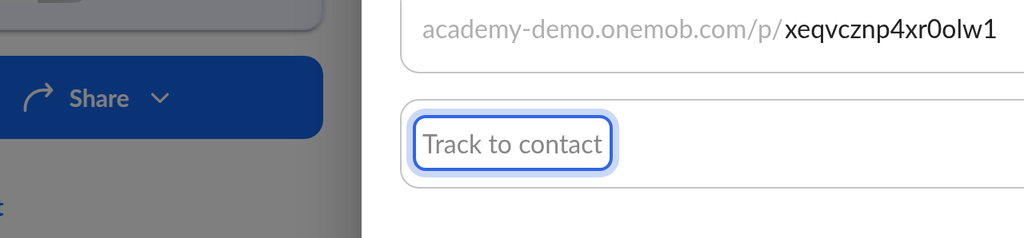
- In Track to contact, choose the contact the link is for. You can choose one contact per link.
- In Track to opportunity, search for the MS Dynamics opportunity by name and choose it.
- Click Create Link.
Both fields are optional. Leave a field empty if you don't want to track to that record.
Where the activity goes
OneMob writes each activity on the link to every record you chose:
- Contact: the activity is added to the MS Dynamics contact whose email address matches the contact you chose.
- Opportunity: the activity is also added to the opportunity you chose.
If you choose both, the activity goes to the contact and to the opportunity. When you create the link, OneMob also logs the link itself on those records.
When you send a microsite in a campaign, the activity is tracked to each recipient's contact in MS Dynamics.
To find the activity in MS Dynamics, see View Activities from OneMob in MS Dynamics.
If it does not work
- Track to opportunity is grayed out and shows Crm is disconnected: your MS Dynamics connection has expired. Reconnect from Account > Integrations.
- You don't see Track to opportunity: your organization has no CRM selected, your plan doesn't include CRM integration, or opportunity tracking is turned off for your organization. Ask your OneMob admin.
- No activity appears on the contact: make sure the contact's email address in OneMob matches the email address on the contact in MS Dynamics. To add or update contacts in OneMob, see Add Contacts.
Still have questions about MS Dynamics? Contact OneMob support and send us a request.
Was this helpful?