OneMob emails you when someone engages with a microsite you sent, for example when they open your email, view the microsite, watch a video or click a link. You can turn off the notification types you do not need for your whole account, or stop notifications for a single microsite.
How notifications are decided
You receive a notification only when both settings allow it: the notification type is on in your account Preferences, and Email notifications is on for that microsite. Turning off either one stops the email.
Turn off notification types for your account
- Open the Preferences tab of your account settings.
- In the Email Notifications column, turn off the types you do not want, such as Email Opened, Microsite Viewed or Link Opened.
- To start new microsites with notifications off, turn off Email Notifications by Default under General.
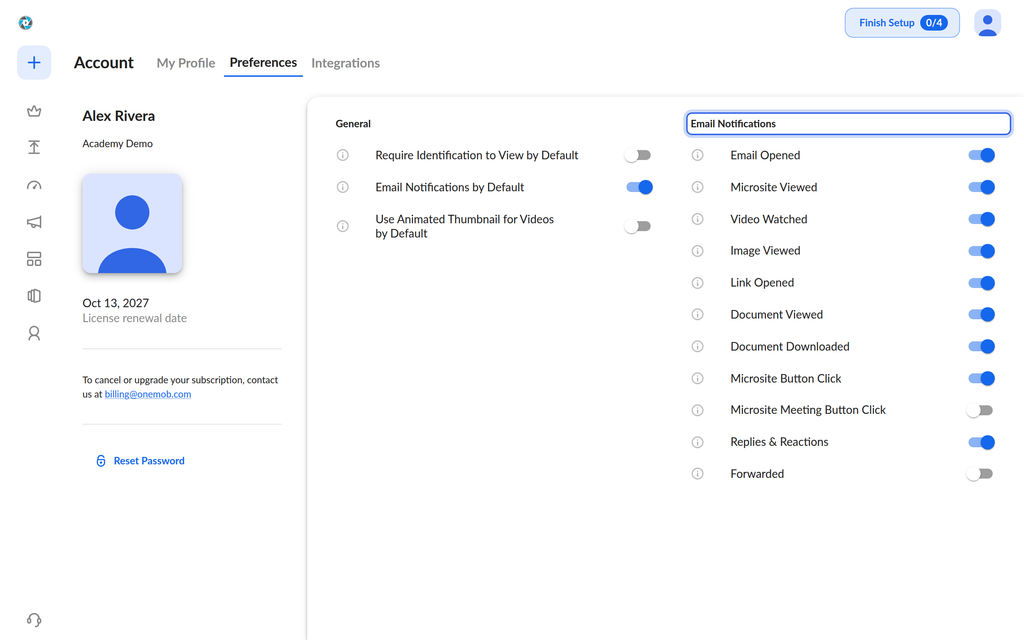
Changes save as soon as you switch a toggle. For what each type means, see Preferences set up.
Stop notifications for one microsite
- Open Microsites and click the microsite.
- Click Edit to open the microsite editor.
- Select the Settings tab at the top of the editor.
- Open the Options section.
- Under Extra features, turn off Email notifications.
- Click Save.
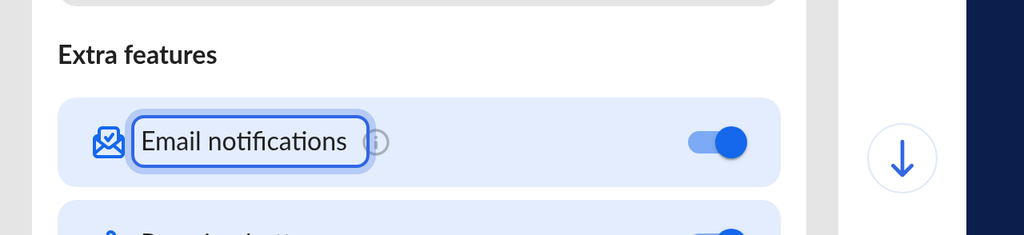
You stop receiving activity emails for that microsite. Turn the toggle back on at any time to receive them again. You can also turn it off before you send a microsite, so you never receive notifications for it. You are always notified when someone replies to your microsite.
Still getting too many emails?
Check that you changed the right microsite, and that the notification type is off in Preferences. If notifications still arrive, send a request to the OneMob support team and include an example of a notification you received.
Was this helpful?